" height="18.205000133514407px" id="Q9ldQFEPI" width="99.29999682617188px"/></svg>)
Blogs
Connect your 3CX PBX to Aethex AI Agents
Connect your 3CX PBX to Aethex AI Agents
Published
•
Written by
Kerry Ehikioya
8 min Read
Keep Reading

Connect your 3CX PBX to Aethex AI Agents
This article shows how to connect a self-hosted 3CX phone system to Aethex AI. By the end, Aethex AI voice agents will be able to answer and place calls to your customers through 3CX.
Aethex AI: African Enterprise Voice AI Stack
Aethex AI is built for emerging markets, delivering localized voices to businesses across Africa. Enterprises handle a large part of their customer interaction through phone calls. In Nigeria, with 192 million active telephone subscriptions, the phone call is a standard channel for customer engagement like loan collection, customer acquisition and customer support.
With Aethex AI, businesses can deploy AI agents that speak to their customers in their local language, with more than 100 voices. The agents connect to the tech stack that your team already uses, including telephony, business software, and customer support tools such as WhatsApp, Zoho CRM and Freshdesk.
For telephony especially, enterprises depend on standard systems such as a PBX and an SBC, from third-party providers such as 3CX. Aethex AI connects to these systems, and provides the voice AI layer to connect with your telephony network.
3CX is a business phone system with more than 350,000 customers in 190 countries. With self-hosted 3CX, Aethex AI supports inbound and outbound calls between AI agents and customers.
3CX deployment options
Besides self-hosted, 3CX offers two cloud options that 3CX runs itself: 3CX SMB and Hosted by 3CX. Only self-hosted 3CX lets you add a generic SIP trunk, which the connection to Aethex AI needs, so this article covers self-hosted 3CX.
Before you start
You need the following:
Administrator access to your self-hosted 3CX system.
A fixed public IP address or public host name for your 3CX system. Aethex does not accept a private IP address.
An Aethex account with at least one agent. If you do not have an account, book a call to sign up.
A carrier that connects your 3CX system to the phone network, and the SIP details that the carrier gave you.
The phone number from your carrier that the agent will use, with the country code. E.164 is the recommended format.
3CX setup - inbound calls
These steps create a 3CX user for the agent and send calls for your number to that user. Aethex then logs in to 3CX as the user, the same way a softphone does.
User for the agent
Open Users and select Add User. On the General tab, keep the Extension number that 3CX suggests, and enter a First Name and a Last Name that identify the agent, for example Aethex AI and Agent. Leave Assigned DID number(s) empty for now.

On the Options tab, clear Block remote non-tunnel connections (Insecure!) and select PBX delivers audio. The agent logs in from outside your network, and 3CX blocks that login while the first option is selected. Set SRTP Mode to Enabled. Aethex offers encrypted audio on outbound calls, and with SRTP Mode set to Disabled, 3CX connects the call with no audio. Select Save.

Open the new user from the Users list and select the IP Phone tab, then select Configure a Phone. Select I will configure the phone myself, then select Next.

Keep Local LAN / VPN with your 3CX host name as the interface, then select Add Phone.

The IP Phone tab now shows the login details of the user. In Auth ID, replace the generated value with the extension number of the user, for example 101 and keep the generated Password. AethexAI logs in with one user name, and 3CX accepts the login only when that name is the extension number.
Note these values, because you enter them in Aethex later.
3CX value | Aethex field |
|---|---|
Auth ID (the extension number) | SIP username |
Password | SIP password |
Registrar Hostname or IP, and Registrar SIP Port | Carrier registrar address, for example |
The public IP address of 3CX (IPv4 on the 3CX dashboard) | Allowed source addresses |

Select Save. The Users list shows the user with a Generic IP Phone.

Aethex addresses in the IP blacklist
3CX blocks an IP address for 24 hours after several failed logins from it. Allow the Aethex SIP edge addresses, so that a mistake in the login details does not block Aethex.
Open Advanced, then IP Blacklist, and select Add. Enter 13.63.135.167, set Action to Allow, and save. Do the same for 51.21.123.34.
Carrier trunk
The carrier trunk brings calls for your number into 3CX. These steps create a trunk for your carrier and send its calls to the agent's user.
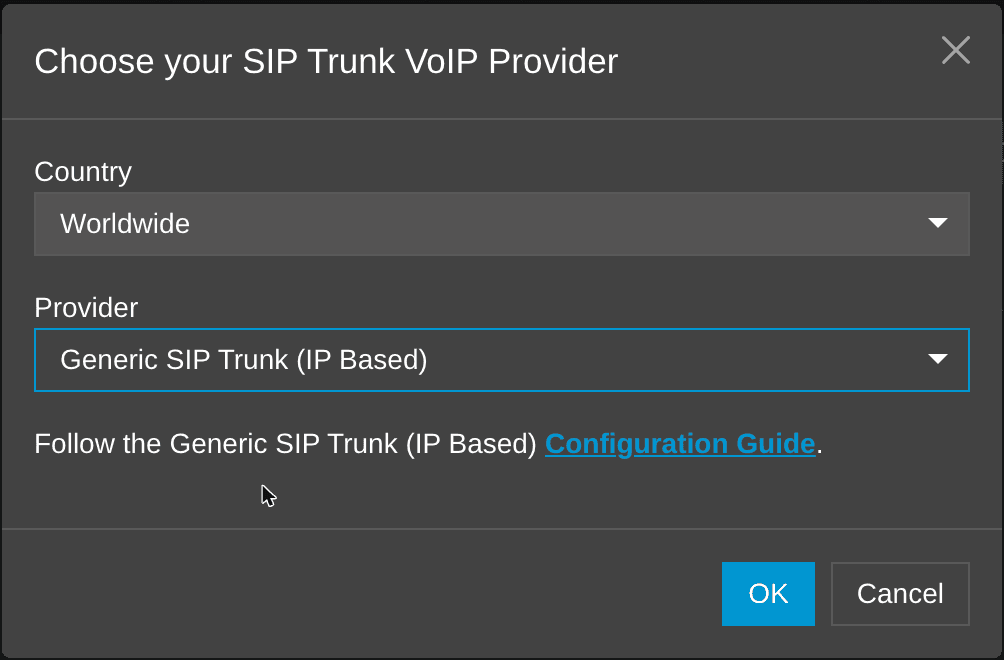
Open Voice & Chat and select Add Trunk. In Country, select your country, or Worldwide if your carrier is not in the list. In Provider, select your carrier. If 3CX does not list your carrier, select Generic VoIP Provider (Registration) when the carrier gave you a user name and a password. Select Generic SIP Trunk (IP Based) when the carrier identifies you by IP address. Then select OK.
The Add Trunk form opens on the General tab. Enter the name, the main trunk number, the authentication details and the server address from your carrier. Set Default route to User, then select the agent's user. 3CX sends a call to the default route when the number on the call matches no other user.

Select Save. Then open the agent's user, and on the General tab select the main trunk number in Assigned DID number(s). Select Save.

Some carriers send the number in the national format. 3CX then finds no match for the assigned number and uses the default route, which is why the default route also points to the agent's user.
Aethex setup
These steps connect a phone line in Aethex that logs in to 3CX as the agent's user.
Sign in to the Aethex platform and open Telephony. Select the SIP Trunks tab, then select Connect a phone line.

In Trunk name, enter a name that identifies your 3CX system. In Phone numbers (DIDs), enter the number that you assigned to the agent's user in 3CX. A line with a registered login uses one number. In Answered by, select the agent that answers calls on this number.
In Authentication, select Registered login (softphone-style). The line then receives and makes calls. In Carrier registrar address, enter the 3CX host name and SIP port, for example centi-test.3cx.ng:5060.

Enter the 3CX public IP address in Allowed source addresses. In SIP username and SIP password, enter the login details from the IP Phone tab (Auth Id and Password) of the agent's user.
Set Transport to UDP or TCP. Set Outbound dial format to Digits (no +) (12025550143). 3CX changes a number that starts with + before it sends the call to your carrier, and the carrier can then reject the number. Use National (02025550143) only if your carrier accepts only the national format.

Select Connect trunk. The line appears in the list with the status Active, and within about a minute it shows Registered. In 3CX, the Users list shows the agent's user in green.
You cannot change the registrar address, the authentication mode, the transport or the media encryption after you save. To change one of these values, connect a new line.
Aethex SIP edge values
If a firewall protects your 3CX system, allow the Aethex SIP edge to reach it. Use the same values if you connect a 3CX trunk to Aethex directly.
Item | Value |
|---|---|
SIP address |
|
SIP port | 5060 |
Transport | TCP (recommended) or UDP |
Audio codec | G.711 A-law (PCMA) or G.711 mu-law (PCMU) |
Aethex SIP edge IP addresses |
|
Calls can come from either IP address, so allow both. To see the current addresses, look up sip.aethexai.com in DNS.
Direction | Protocol and port | Purpose |
|---|---|---|
Aethex to 3CX | TCP 5060 and UDP 5060 | SIP signalling |
Aethex to 3CX | UDP 9000 to 10999 | RTP audio |
3CX to Aethex | TCP 5060 and UDP 5060 | SIP signalling |
3CX to Aethex | UDP 10000 to 60000 | RTP audio |
The range 9000 to 10999 is the 3CX default for audio. The 3CX dashboard shows your range under Ports, next to Media.
3CX setup - outbound calls
3CX sends a call from the agent to your carrier only when there is an outbound rule.
Open Outbound Rules and select Add. In Rule Name, enter a name, for example Aethex agent. In Calls from extension(s), select the extension number of the agent's user. Leave the prefix and the length empty, so that the rule applies to every number that the agent dials. Under Make outbound calls on, set Route 1 to your carrier trunk, then select Save.

If you already have an outbound rule for your carrier, you can add the agent's extension number to that rule. 3CX uses the first rule in the list that matches the call.
3CX sets the caller number that your customer sees. By default it is the number of the carrier trunk.
3CX allows calls only to the countries that are selected under Advanced, then Allowed Country Codes. Make sure that the countries of your customers are selected.
Test call
Inbound test: from a phone outside 3CX, call your number. The agent answers. In 3CX, Reports shows the call with the agent's user, and the Aethex call log shows the call with its transcript and recording.
Outbound test: in the Aethex platform, start a call from the agent to a phone that you can answer. The phone rings, and the agent speaks when you answer. In 3CX, Reports shows the call as Outbound, with the outbound rule and the carrier trunk.

If the inbound and outbound tests connect, the setup is complete. If one of them fails, find the symptom in the table below.
Troubleshooting
In 3CX, Reports lists each call and the user that 3CX sent it to. Event Log lists refused calls and trunk status changes.
Symptom | Possible cause | Correction |
|---|---|---|
The Aethex line shows Registration failing, and Event Log in 3CX shows "Block WAN requests is ON". | Block remote non-tunnel connections (Insecure!) is selected on the agent's user. | Clear it on the Options tab of the user. |
The caller hears the voicemail of the agent's user. | Aethex is not logged in to 3CX as that user. | Check that the Aethex line shows Registered. |
3CX sends the call to a different user. | The number on the call matches no assigned number, and the default route of the trunk is a different user. | Set Default route on the carrier trunk to the agent's user. |
An outbound call does not ring, and Reports in 3CX shows "Number not found" on the carrier trunk. | The dialled number starts with | Set Outbound dial format to Digits (no +) on the Aethex line. |
An outbound call does not ring, and Reports in 3CX shows the call with no outbound rule. | The extension number of the agent's user is not in an outbound rule. | Add it to Calls from extension(s) on the rule for your carrier. |
Conclusion
Your 3CX phone system is now connected to Aethex AI. Aethex AI voice agents handle inbound and outbound calls routed via 3CX trunk and your carrier, to your customers.
With voice AI on your phone system, the number of calls you can handle no longer depends on the number of people available to take them. As your call volume grows, add more numbers and agents with the same setup.
Resources:
Connect your 3CX PBX to Aethex AI Agents
This article shows how to connect a self-hosted 3CX phone system to Aethex AI. By the end, Aethex AI voice agents will be able to answer and place calls to your customers through 3CX.
Aethex AI: African Enterprise Voice AI Stack
Aethex AI is built for emerging markets, delivering localized voices to businesses across Africa. Enterprises handle a large part of their customer interaction through phone calls. In Nigeria, with 192 million active telephone subscriptions, the phone call is a standard channel for customer engagement like loan collection, customer acquisition and customer support.
With Aethex AI, businesses can deploy AI agents that speak to their customers in their local language, with more than 100 voices. The agents connect to the tech stack that your team already uses, including telephony, business software, and customer support tools such as WhatsApp, Zoho CRM and Freshdesk.
For telephony especially, enterprises depend on standard systems such as a PBX and an SBC, from third-party providers such as 3CX. Aethex AI connects to these systems, and provides the voice AI layer to connect with your telephony network.
3CX is a business phone system with more than 350,000 customers in 190 countries. With self-hosted 3CX, Aethex AI supports inbound and outbound calls between AI agents and customers.
3CX deployment options
Besides self-hosted, 3CX offers two cloud options that 3CX runs itself: 3CX SMB and Hosted by 3CX. Only self-hosted 3CX lets you add a generic SIP trunk, which the connection to Aethex AI needs, so this article covers self-hosted 3CX.
Before you start
You need the following:
Administrator access to your self-hosted 3CX system.
A fixed public IP address or public host name for your 3CX system. Aethex does not accept a private IP address.
An Aethex account with at least one agent. If you do not have an account, book a call to sign up.
A carrier that connects your 3CX system to the phone network, and the SIP details that the carrier gave you.
The phone number from your carrier that the agent will use, with the country code. E.164 is the recommended format.
3CX setup - inbound calls
These steps create a 3CX user for the agent and send calls for your number to that user. Aethex then logs in to 3CX as the user, the same way a softphone does.
User for the agent
Open Users and select Add User. On the General tab, keep the Extension number that 3CX suggests, and enter a First Name and a Last Name that identify the agent, for example Aethex AI and Agent. Leave Assigned DID number(s) empty for now.
On the Options tab, clear Block remote non-tunnel connections (Insecure!) and select PBX delivers audio. The agent logs in from outside your network, and 3CX blocks that login while the first option is selected. Set SRTP Mode to Enabled. Aethex offers encrypted audio on outbound calls, and with SRTP Mode set to Disabled, 3CX connects the call with no audio. Select Save.
Open the new user from the Users list and select the IP Phone tab, then select Configure a Phone. Select I will configure the phone myself, then select Next.
Keep Local LAN / VPN with your 3CX host name as the interface, then select Add Phone.
The IP Phone tab now shows the login details of the user. In Auth ID, replace the generated value with the extension number of the user, for example 101 and keep the generated Password. AethexAI logs in with one user name, and 3CX accepts the login only when that name is the extension number.
Note these values, because you enter them in Aethex later.
3CX value | Aethex field |
|---|---|
Auth ID (the extension number) | SIP username |
Password | SIP password |
Registrar Hostname or IP, and Registrar SIP Port | Carrier registrar address, for example |
The public IP address of 3CX (IPv4 on the 3CX dashboard) | Allowed source addresses |
Select Save. The Users list shows the user with a Generic IP Phone.
Aethex addresses in the IP blacklist
3CX blocks an IP address for 24 hours after several failed logins from it. Allow the Aethex SIP edge addresses, so that a mistake in the login details does not block Aethex.
Open Advanced, then IP Blacklist, and select Add. Enter 13.63.135.167, set Action to Allow, and save. Do the same for 51.21.123.34.
Carrier trunk
The carrier trunk brings calls for your number into 3CX. These steps create a trunk for your carrier and send its calls to the agent's user.
Open Voice & Chat and select Add Trunk. In Country, select your country, or Worldwide if your carrier is not in the list. In Provider, select your carrier. If 3CX does not list your carrier, select Generic VoIP Provider (Registration) when the carrier gave you a user name and a password. Select Generic SIP Trunk (IP Based) when the carrier identifies you by IP address. Then select OK.
The Add Trunk form opens on the General tab. Enter the name, the main trunk number, the authentication details and the server address from your carrier. Set Default route to User, then select the agent's user. 3CX sends a call to the default route when the number on the call matches no other user.
Select Save. Then open the agent's user, and on the General tab select the main trunk number in Assigned DID number(s). Select Save.
Some carriers send the number in the national format. 3CX then finds no match for the assigned number and uses the default route, which is why the default route also points to the agent's user.
Aethex setup
These steps connect a phone line in Aethex that logs in to 3CX as the agent's user.
Sign in to the Aethex platform and open Telephony. Select the SIP Trunks tab, then select Connect a phone line.
In Trunk name, enter a name that identifies your 3CX system. In Phone numbers (DIDs), enter the number that you assigned to the agent's user in 3CX. A line with a registered login uses one number. In Answered by, select the agent that answers calls on this number.
In Authentication, select Registered login (softphone-style). The line then receives and makes calls. In Carrier registrar address, enter the 3CX host name and SIP port, for example centi-test.3cx.ng:5060.
Enter the 3CX public IP address in Allowed source addresses. In SIP username and SIP password, enter the login details from the IP Phone tab (Auth Id and Password) of the agent's user.
Set Transport to UDP or TCP. Set Outbound dial format to Digits (no +) (12025550143). 3CX changes a number that starts with + before it sends the call to your carrier, and the carrier can then reject the number. Use National (02025550143) only if your carrier accepts only the national format.
Select Connect trunk. The line appears in the list with the status Active, and within about a minute it shows Registered. In 3CX, the Users list shows the agent's user in green.
You cannot change the registrar address, the authentication mode, the transport or the media encryption after you save. To change one of these values, connect a new line.
Aethex SIP edge values
If a firewall protects your 3CX system, allow the Aethex SIP edge to reach it. Use the same values if you connect a 3CX trunk to Aethex directly.
Item | Value |
|---|---|
SIP address |
|
SIP port | 5060 |
Transport | TCP (recommended) or UDP |
Audio codec | G.711 A-law (PCMA) or G.711 mu-law (PCMU) |
Aethex SIP edge IP addresses |
|
Calls can come from either IP address, so allow both. To see the current addresses, look up sip.aethexai.com in DNS.
Direction | Protocol and port | Purpose |
|---|---|---|
Aethex to 3CX | TCP 5060 and UDP 5060 | SIP signalling |
Aethex to 3CX | UDP 9000 to 10999 | RTP audio |
3CX to Aethex | TCP 5060 and UDP 5060 | SIP signalling |
3CX to Aethex | UDP 10000 to 60000 | RTP audio |
The range 9000 to 10999 is the 3CX default for audio. The 3CX dashboard shows your range under Ports, next to Media.
3CX setup - outbound calls
3CX sends a call from the agent to your carrier only when there is an outbound rule.
Open Outbound Rules and select Add. In Rule Name, enter a name, for example Aethex agent. In Calls from extension(s), select the extension number of the agent's user. Leave the prefix and the length empty, so that the rule applies to every number that the agent dials. Under Make outbound calls on, set Route 1 to your carrier trunk, then select Save.
If you already have an outbound rule for your carrier, you can add the agent's extension number to that rule. 3CX uses the first rule in the list that matches the call.
3CX sets the caller number that your customer sees. By default it is the number of the carrier trunk.
3CX allows calls only to the countries that are selected under Advanced, then Allowed Country Codes. Make sure that the countries of your customers are selected.
Test call
Inbound test: from a phone outside 3CX, call your number. The agent answers. In 3CX, Reports shows the call with the agent's user, and the Aethex call log shows the call with its transcript and recording.
Outbound test: in the Aethex platform, start a call from the agent to a phone that you can answer. The phone rings, and the agent speaks when you answer. In 3CX, Reports shows the call as Outbound, with the outbound rule and the carrier trunk.
If the inbound and outbound tests connect, the setup is complete. If one of them fails, find the symptom in the table below.
Troubleshooting
In 3CX, Reports lists each call and the user that 3CX sent it to. Event Log lists refused calls and trunk status changes.
Symptom | Possible cause | Correction |
|---|---|---|
The Aethex line shows Registration failing, and Event Log in 3CX shows "Block WAN requests is ON". | Block remote non-tunnel connections (Insecure!) is selected on the agent's user. | Clear it on the Options tab of the user. |
The caller hears the voicemail of the agent's user. | Aethex is not logged in to 3CX as that user. | Check that the Aethex line shows Registered. |
3CX sends the call to a different user. | The number on the call matches no assigned number, and the default route of the trunk is a different user. | Set Default route on the carrier trunk to the agent's user. |
An outbound call does not ring, and Reports in 3CX shows "Number not found" on the carrier trunk. | The dialled number starts with | Set Outbound dial format to Digits (no +) on the Aethex line. |
An outbound call does not ring, and Reports in 3CX shows the call with no outbound rule. | The extension number of the agent's user is not in an outbound rule. | Add it to Calls from extension(s) on the rule for your carrier. |
Conclusion
Your 3CX phone system is now connected to Aethex AI. Aethex AI voice agents handle inbound and outbound calls routed via 3CX trunk and your carrier, to your customers.
With voice AI on your phone system, the number of calls you can handle no longer depends on the number of people available to take them. As your call volume grows, add more numbers and agents with the same setup.
Resources:
Connect your 3CX PBX to Aethex AI Agents
This article shows how to connect a self-hosted 3CX phone system to Aethex AI. By the end, Aethex AI voice agents will be able to answer and place calls to your customers through 3CX.
Aethex AI: African Enterprise Voice AI Stack
Aethex AI is built for emerging markets, delivering localized voices to businesses across Africa. Enterprises handle a large part of their customer interaction through phone calls. In Nigeria, with 192 million active telephone subscriptions, the phone call is a standard channel for customer engagement like loan collection, customer acquisition and customer support.
With Aethex AI, businesses can deploy AI agents that speak to their customers in their local language, with more than 100 voices. The agents connect to the tech stack that your team already uses, including telephony, business software, and customer support tools such as WhatsApp, Zoho CRM and Freshdesk.
For telephony especially, enterprises depend on standard systems such as a PBX and an SBC, from third-party providers such as 3CX. Aethex AI connects to these systems, and provides the voice AI layer to connect with your telephony network.
3CX is a business phone system with more than 350,000 customers in 190 countries. With self-hosted 3CX, Aethex AI supports inbound and outbound calls between AI agents and customers.
3CX deployment options
Besides self-hosted, 3CX offers two cloud options that 3CX runs itself: 3CX SMB and Hosted by 3CX. Only self-hosted 3CX lets you add a generic SIP trunk, which the connection to Aethex AI needs, so this article covers self-hosted 3CX.
Before you start
You need the following:
Administrator access to your self-hosted 3CX system.
A fixed public IP address or public host name for your 3CX system. Aethex does not accept a private IP address.
An Aethex account with at least one agent. If you do not have an account, book a call to sign up.
A carrier that connects your 3CX system to the phone network, and the SIP details that the carrier gave you.
The phone number from your carrier that the agent will use, with the country code. E.164 is the recommended format.
3CX setup - inbound calls
These steps create a 3CX user for the agent and send calls for your number to that user. Aethex then logs in to 3CX as the user, the same way a softphone does.
User for the agent
Open Users and select Add User. On the General tab, keep the Extension number that 3CX suggests, and enter a First Name and a Last Name that identify the agent, for example Aethex AI and Agent. Leave Assigned DID number(s) empty for now.
On the Options tab, clear Block remote non-tunnel connections (Insecure!) and select PBX delivers audio. The agent logs in from outside your network, and 3CX blocks that login while the first option is selected. Set SRTP Mode to Enabled. Aethex offers encrypted audio on outbound calls, and with SRTP Mode set to Disabled, 3CX connects the call with no audio. Select Save.
Open the new user from the Users list and select the IP Phone tab, then select Configure a Phone. Select I will configure the phone myself, then select Next.
Keep Local LAN / VPN with your 3CX host name as the interface, then select Add Phone.
The IP Phone tab now shows the login details of the user. In Auth ID, replace the generated value with the extension number of the user, for example 101 and keep the generated Password. AethexAI logs in with one user name, and 3CX accepts the login only when that name is the extension number.
Note these values, because you enter them in Aethex later.
3CX value | Aethex field |
|---|---|
Auth ID (the extension number) | SIP username |
Password | SIP password |
Registrar Hostname or IP, and Registrar SIP Port | Carrier registrar address, for example |
The public IP address of 3CX (IPv4 on the 3CX dashboard) | Allowed source addresses |
Select Save. The Users list shows the user with a Generic IP Phone.
Aethex addresses in the IP blacklist
3CX blocks an IP address for 24 hours after several failed logins from it. Allow the Aethex SIP edge addresses, so that a mistake in the login details does not block Aethex.
Open Advanced, then IP Blacklist, and select Add. Enter 13.63.135.167, set Action to Allow, and save. Do the same for 51.21.123.34.
Carrier trunk
The carrier trunk brings calls for your number into 3CX. These steps create a trunk for your carrier and send its calls to the agent's user.
Open Voice & Chat and select Add Trunk. In Country, select your country, or Worldwide if your carrier is not in the list. In Provider, select your carrier. If 3CX does not list your carrier, select Generic VoIP Provider (Registration) when the carrier gave you a user name and a password. Select Generic SIP Trunk (IP Based) when the carrier identifies you by IP address. Then select OK.
The Add Trunk form opens on the General tab. Enter the name, the main trunk number, the authentication details and the server address from your carrier. Set Default route to User, then select the agent's user. 3CX sends a call to the default route when the number on the call matches no other user.
Select Save. Then open the agent's user, and on the General tab select the main trunk number in Assigned DID number(s). Select Save.
Some carriers send the number in the national format. 3CX then finds no match for the assigned number and uses the default route, which is why the default route also points to the agent's user.
Aethex setup
These steps connect a phone line in Aethex that logs in to 3CX as the agent's user.
Sign in to the Aethex platform and open Telephony. Select the SIP Trunks tab, then select Connect a phone line.
In Trunk name, enter a name that identifies your 3CX system. In Phone numbers (DIDs), enter the number that you assigned to the agent's user in 3CX. A line with a registered login uses one number. In Answered by, select the agent that answers calls on this number.
In Authentication, select Registered login (softphone-style). The line then receives and makes calls. In Carrier registrar address, enter the 3CX host name and SIP port, for example centi-test.3cx.ng:5060.
Enter the 3CX public IP address in Allowed source addresses. In SIP username and SIP password, enter the login details from the IP Phone tab (Auth Id and Password) of the agent's user.
Set Transport to UDP or TCP. Set Outbound dial format to Digits (no +) (12025550143). 3CX changes a number that starts with + before it sends the call to your carrier, and the carrier can then reject the number. Use National (02025550143) only if your carrier accepts only the national format.
Select Connect trunk. The line appears in the list with the status Active, and within about a minute it shows Registered. In 3CX, the Users list shows the agent's user in green.
You cannot change the registrar address, the authentication mode, the transport or the media encryption after you save. To change one of these values, connect a new line.
Aethex SIP edge values
If a firewall protects your 3CX system, allow the Aethex SIP edge to reach it. Use the same values if you connect a 3CX trunk to Aethex directly.
Item | Value |
|---|---|
SIP address |
|
SIP port | 5060 |
Transport | TCP (recommended) or UDP |
Audio codec | G.711 A-law (PCMA) or G.711 mu-law (PCMU) |
Aethex SIP edge IP addresses |
|
Calls can come from either IP address, so allow both. To see the current addresses, look up sip.aethexai.com in DNS.
Direction | Protocol and port | Purpose |
|---|---|---|
Aethex to 3CX | TCP 5060 and UDP 5060 | SIP signalling |
Aethex to 3CX | UDP 9000 to 10999 | RTP audio |
3CX to Aethex | TCP 5060 and UDP 5060 | SIP signalling |
3CX to Aethex | UDP 10000 to 60000 | RTP audio |
The range 9000 to 10999 is the 3CX default for audio. The 3CX dashboard shows your range under Ports, next to Media.
3CX setup - outbound calls
3CX sends a call from the agent to your carrier only when there is an outbound rule.
Open Outbound Rules and select Add. In Rule Name, enter a name, for example Aethex agent. In Calls from extension(s), select the extension number of the agent's user. Leave the prefix and the length empty, so that the rule applies to every number that the agent dials. Under Make outbound calls on, set Route 1 to your carrier trunk, then select Save.
If you already have an outbound rule for your carrier, you can add the agent's extension number to that rule. 3CX uses the first rule in the list that matches the call.
3CX sets the caller number that your customer sees. By default it is the number of the carrier trunk.
3CX allows calls only to the countries that are selected under Advanced, then Allowed Country Codes. Make sure that the countries of your customers are selected.
Test call
Inbound test: from a phone outside 3CX, call your number. The agent answers. In 3CX, Reports shows the call with the agent's user, and the Aethex call log shows the call with its transcript and recording.
Outbound test: in the Aethex platform, start a call from the agent to a phone that you can answer. The phone rings, and the agent speaks when you answer. In 3CX, Reports shows the call as Outbound, with the outbound rule and the carrier trunk.
If the inbound and outbound tests connect, the setup is complete. If one of them fails, find the symptom in the table below.
Troubleshooting
In 3CX, Reports lists each call and the user that 3CX sent it to. Event Log lists refused calls and trunk status changes.
Symptom | Possible cause | Correction |
|---|---|---|
The Aethex line shows Registration failing, and Event Log in 3CX shows "Block WAN requests is ON". | Block remote non-tunnel connections (Insecure!) is selected on the agent's user. | Clear it on the Options tab of the user. |
The caller hears the voicemail of the agent's user. | Aethex is not logged in to 3CX as that user. | Check that the Aethex line shows Registered. |
3CX sends the call to a different user. | The number on the call matches no assigned number, and the default route of the trunk is a different user. | Set Default route on the carrier trunk to the agent's user. |
An outbound call does not ring, and Reports in 3CX shows "Number not found" on the carrier trunk. | The dialled number starts with | Set Outbound dial format to Digits (no +) on the Aethex line. |
An outbound call does not ring, and Reports in 3CX shows the call with no outbound rule. | The extension number of the agent's user is not in an outbound rule. | Add it to Calls from extension(s) on the rule for your carrier. |
Conclusion
Your 3CX phone system is now connected to Aethex AI. Aethex AI voice agents handle inbound and outbound calls routed via 3CX trunk and your carrier, to your customers.
With voice AI on your phone system, the number of calls you can handle no longer depends on the number of people available to take them. As your call volume grows, add more numbers and agents with the same setup.
Resources:
Related Articles
Related Articles



" height="48px" id="GUWw61FwZ" width="48px"/></g></svg>)
" height="39.77194px" id="u4BE2MQos" transform="translate(2 3.808)" width="44px"/></svg>)
" height="47.200121890287576px" id="H2XXrumOQ" width="48.000007146720094px"/></g></svg>)
" height="36.58656032986642px" id="JYRMZCWYV" transform="translate(0 5.278)" width="47.99999468333146px"/></svg>)
The voice AI stack for emerging markets.
See agents in production, configured for your use case, your market, your systems.